Corner Place
How to Play
A Corner Place puzzle is a 5x5 grid of squares, which are each divided into 4 corners. The goal is to place one number from 1 to 5 into each corner of each square while obeying three rules:
- Each number must appear in each kind of corner exactly once in each column.
- Each number must appear in each kind of corner exactly once in each row.
- No two squares can share the same two numbers in the same two corners.
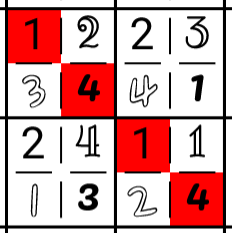
For example, in the image below, we have two squares that both have 1 in their northwest corner and both have 4 in their southeast corner, violating rule 3.
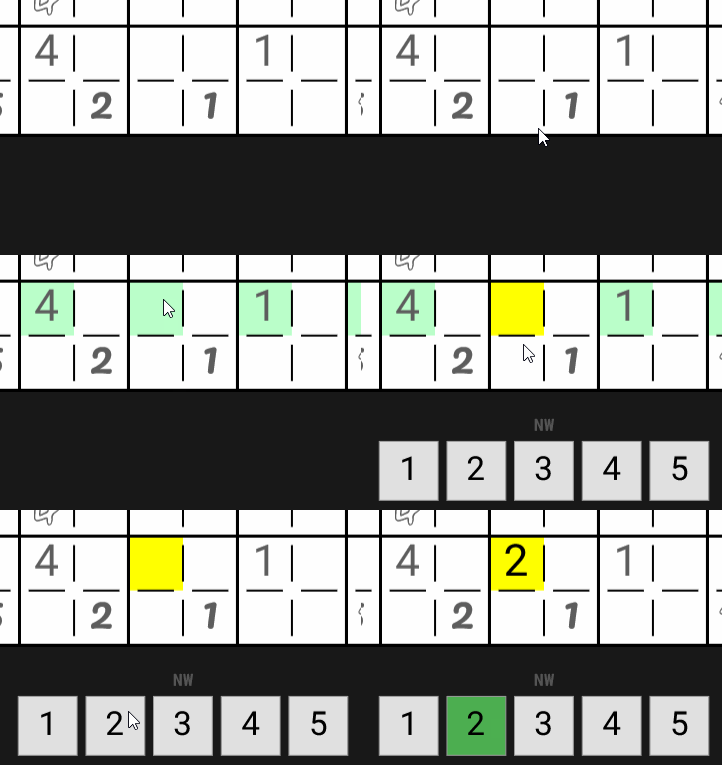
In order to place a number into the grid, you simply press on the corner of square where you want to place the number, then press the appropriate number button that appears. For example, here, we place a 2 into the northwest corner of a square:
(If you are playing on PC, you also have the option of pressing the corresponding numeric key on your keyboard.)
If you fill in a value incorrectly, you can remove it by simply pressing the same number again (On PC, you can also use the Delete or Backspace keys to clear a value.)
Visual Aids
In order to make solving puzzles easier, this digital version of Corner Place features a few visual aids.
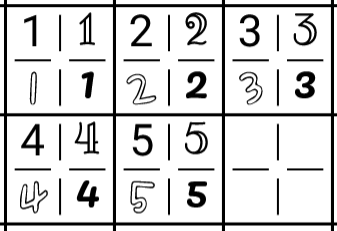
As you can see from some of the other images, each kind of corner uses a distinctive font. This should make it easier to tell at a glance what kind of corner a number is in.
To aid in identifying the elements of a single kind of corner across a whole row or column, the game automatically highlights corners of the same type in every square in the same row or column whenever you press down on (or hover the mouse over) a corner of a square.
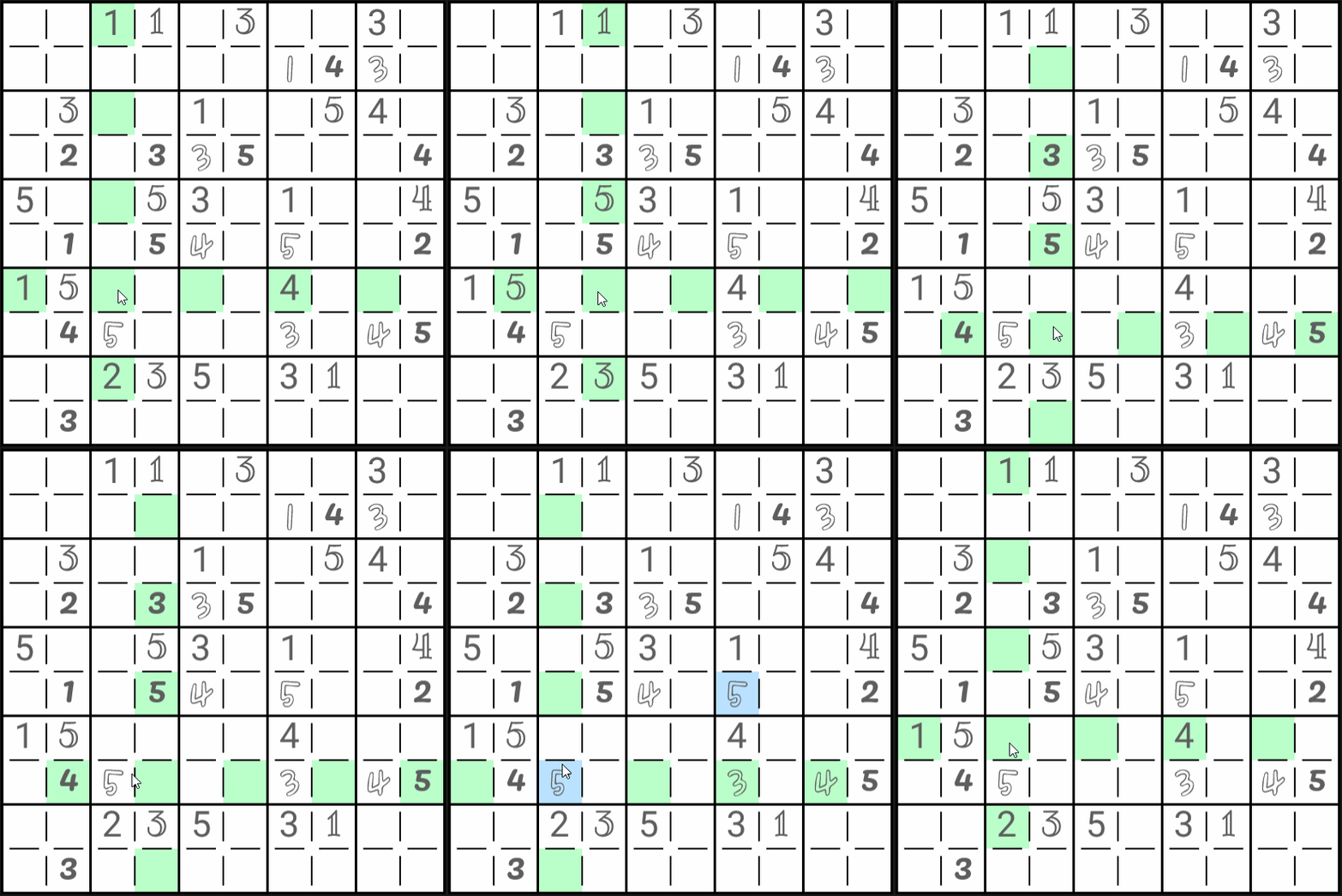
You can also see that when hovering directly over an already-filled number, that number gets highlighted in blue, and all instances of the same number in the same kind of corner are also highlighted in blue. This can help in determining how many instances of that number still need to be placed in that kind of corner, and which rows and columns are still unoccupied.
Finally, there is a special feature to aid in identifying cases where a placement might violate rule 3, which can be activated by pressing down on a corner, and then dragging to another corner of the same square.
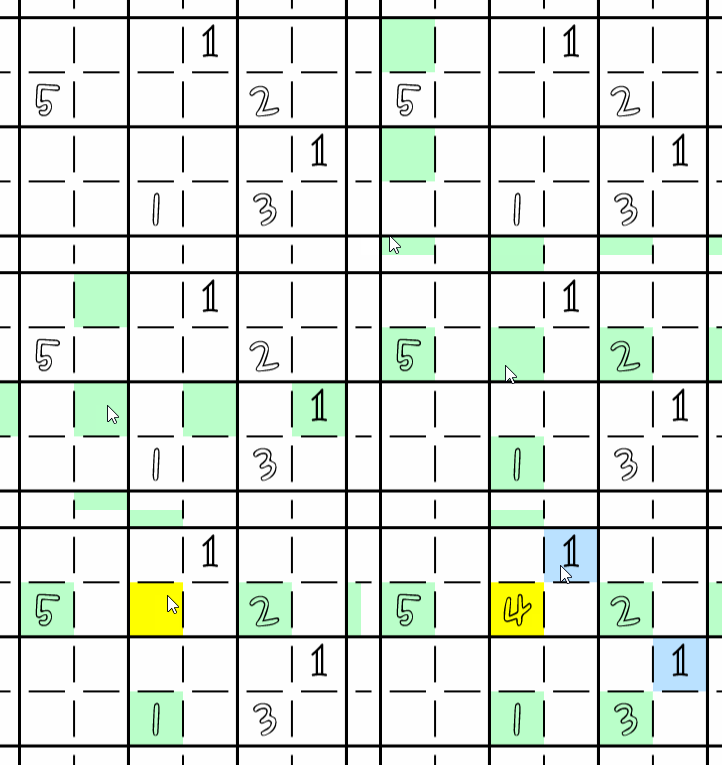
Corners of the same kind that contain the same number as the corner under the cursor are highlighted in blue as normal. But, in addition, within the same square, the corner corresponding to the corner that was initially pressed down on is highlighted in green. All numbers that can be highlighted in green in this way are numbers that may not be placed in the corner that was initially pressed down on. In this example, 1, 2 and 5 are in the same row or column, and the press-and-drag feature reveals a 3 that has already been paired with a northeastern 1, meaning that 4 is the only valid option remaining.
Tips
Although there are only three rules, you may need to think a few moves ahead to avoid painting yourself into a corner where you will become unable to make a move. There are a few rules of thumb that you can use to quickly figure out where you can make placements.
-
A corner of a square must be filled with a number if:
- The square is the only square missing that kind of corner in its row or column in the row, and that number is the only number that hasn't appeared in that kind of corner in the row or column.
- The number has already appeared in that kind of corner 4 other times, and this is the only square that doesn't lie in the same row or column as the other instances.
- As an additional special case, if a number has already appeared in a particular kind of corner three times, then this narrows it down to only four possible locations for the last two instances. These four locations will lie at the corners of a rectangle, and the last two instances must always be placed at opposite corners of that rectangle. This means that if any corner is already occupied, the remaining instances must be at the corners adjacent to the occupied corner.
This is not a full list of all of the tricks that can be used to speed up the process of solving a puzzle. You will discover additional shortcuts on your own, but these cover many of the basic cases that you'll encounter.